
Dashboard Operations
The dashboard (server/packages/dashboard) is the control plane for Arcnem Vision. Use it to create workflow keys and service keys, attach workflows, generate first-pass drafts with AI, upload images, inspect OCR and segmentation artifacts, search the corpus, and review step-by-step runs without redeploying code.
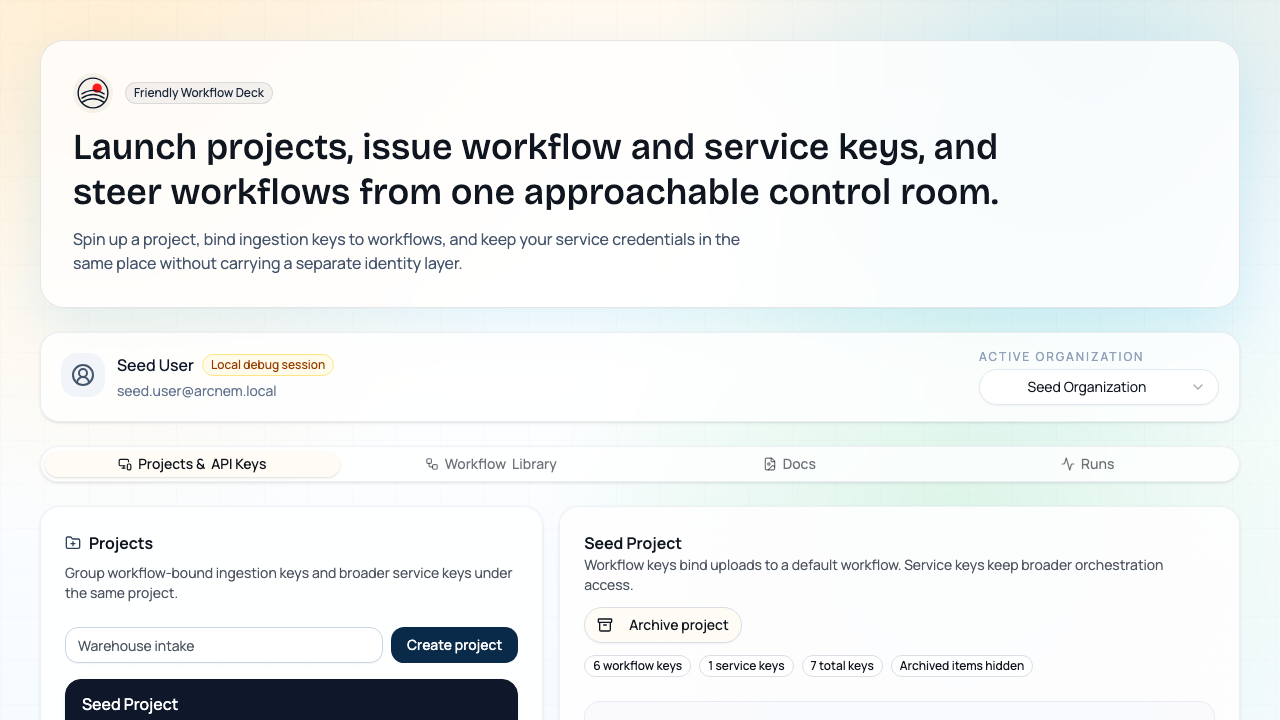
Tabs at a glance
Section titled “Tabs at a glance”- Projects & API Keys: create projects, issue workflow keys with default workflows, and manage service keys for broader orchestration.
- Workflow Library: create/edit graph workflows, browse reusable templates, generate draft graphs from a natural-language brief, and start new graphs from the template picker.
- Docs: browse seeded or live uploads, run semantic search, ask grounded questions across the collection, upload directly from the dashboard, inspect related OCR and segmentation outputs, and queue workflows against any document.
- Runs: monitor execution history with live updates as runs start, advance, and finish.
Projects and API keys
Section titled “Projects and API keys”- Create a project.
- Create workflow keys inside that project and choose the saved workflow each key should run by default.
- Create service API keys when backend jobs or integrations need broader orchestration access.
Notes:
- The generated secret is shown once; afterward the dashboard keeps only the public identifier.
- Existing keys can be renamed or disabled without changing document attribution.
- Workflow assignment is per workflow key, so one project can mix standard ingestion, OCR review, quality review, and segmentation keys.
- Workflow-key uploads use the API-key ingestion path and auto-run the key’s bound workflow after
/uploads/ack.
Building workflows
Section titled “Building workflows”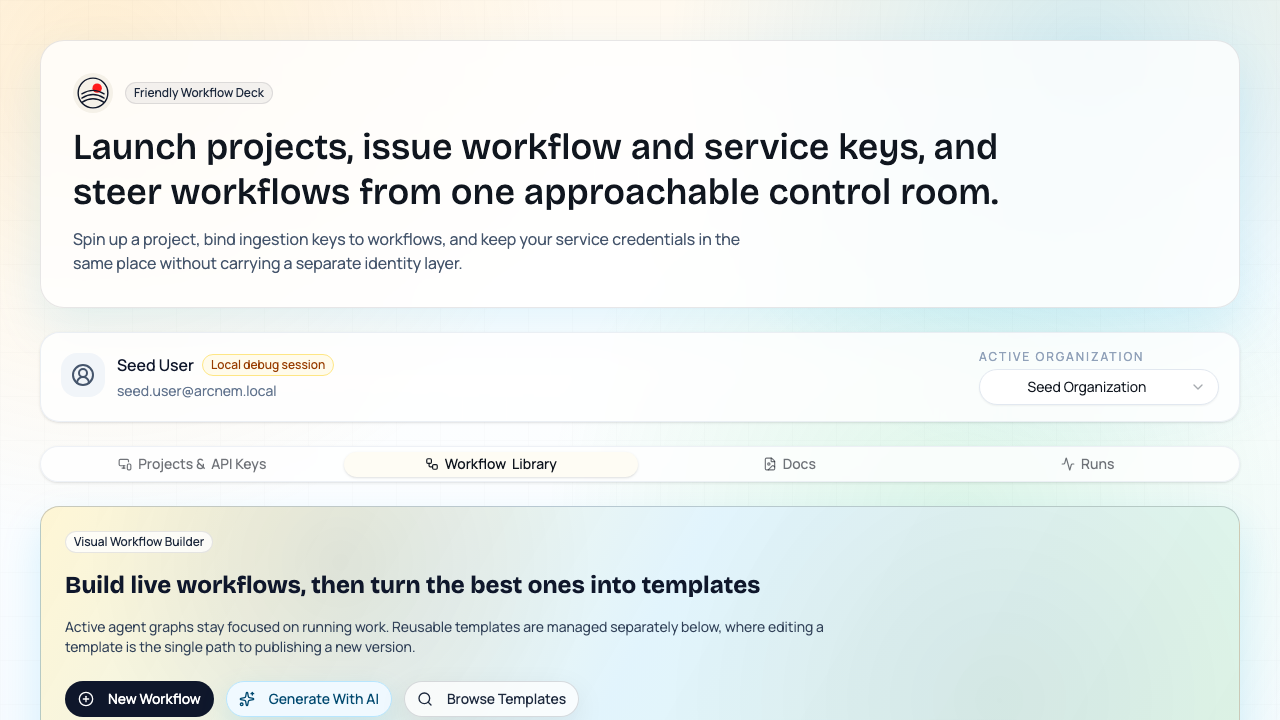
Open Workflow Library to create a blank workflow, generate a first draft with AI, start from a reusable template, or edit an existing graph.
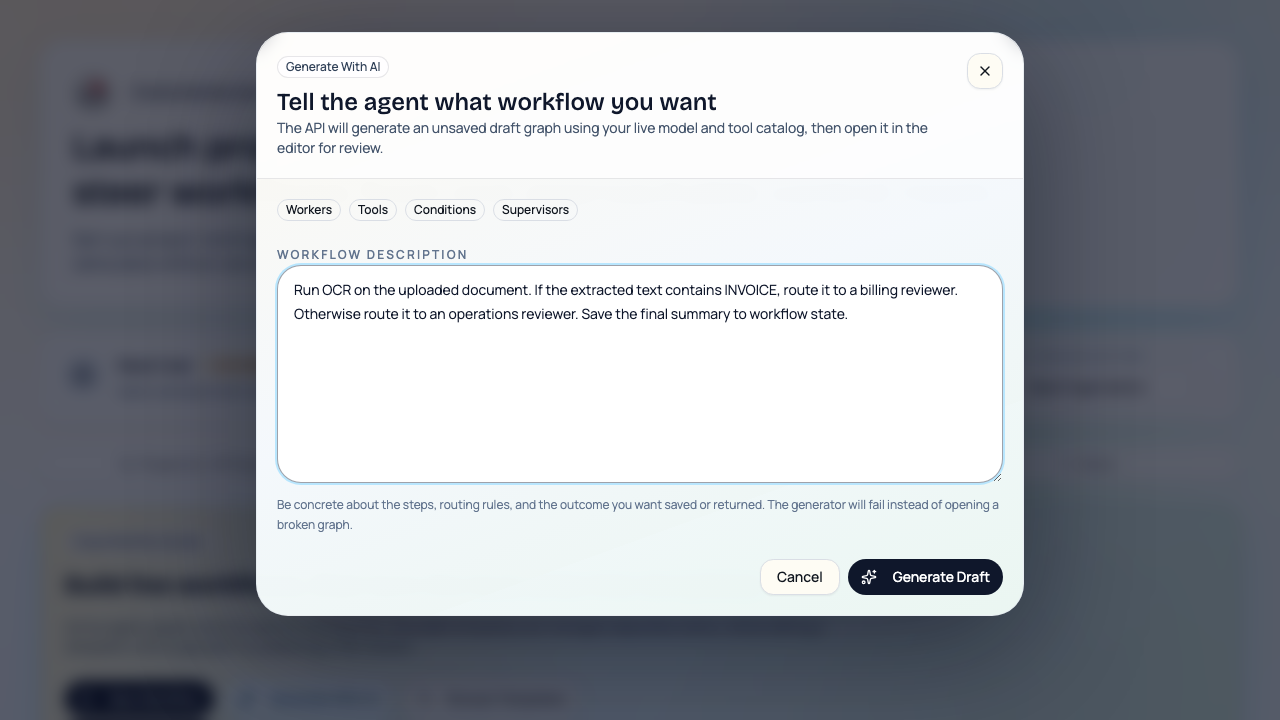
Generating a draft with AI
Section titled “Generating a draft with AI”- Click Generate With AI from the Workflow Library hero.
- Describe the workflow steps, routing rules, and the output you want saved.
- Submit the brief.
- The API matches your live model and tool catalog, then opens an unsaved draft graph in the editor.
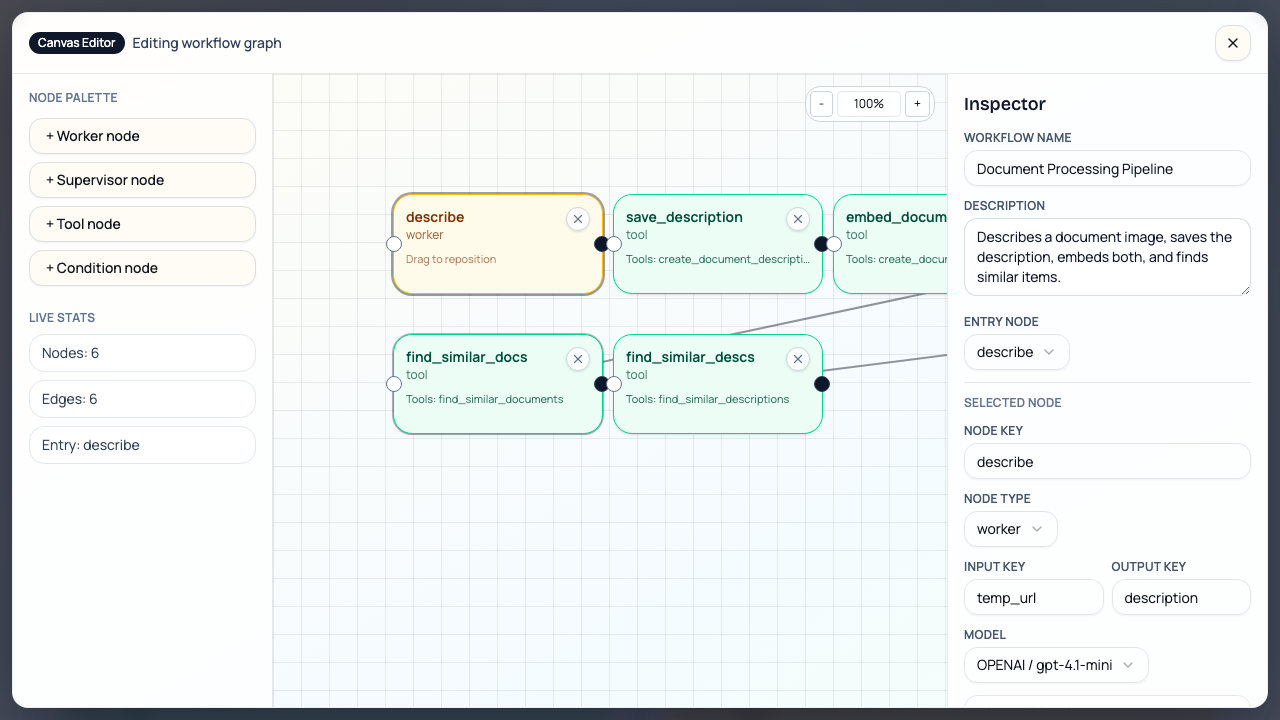
- Review the generated nodes, edges, and mappings before saving the workflow.
- The generated graph is intentionally unsaved until you confirm it in the canvas.
- Draft generation fails instead of opening a broken graph when required tool inputs or routing cannot be satisfied.
Starting from a template
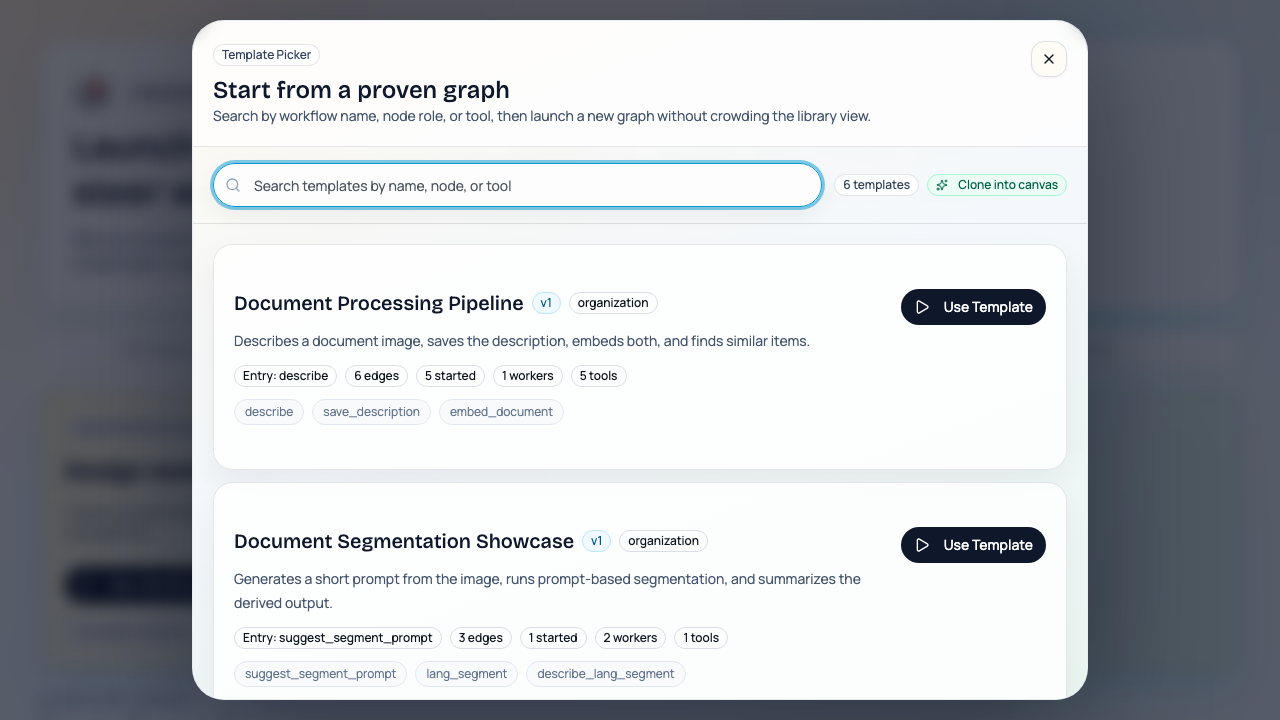
Section titled “Starting from a template”- Click Browse Templates from the Workflow Library hero.
- Search by workflow name, node role, or tool.
- Review the template card for version, visibility, entry node, edge count, how many workflows have already been started from it, and sample node keys.
- Click Use Template.
- The dashboard clones the template into a new organization workflow, opens it in the canvas, and keeps the source template + version visible on the started workflow card.
- If the template name is already taken, the dashboard auto-increments the new workflow name (
Foo,Foo 2, and so on).
- Started workflows are independent copies. You can edit nodes, edges, tools, and metadata on the new graph without mutating the template.
Node types
Section titled “Node types”| Node type | Purpose | Required config |
|---|---|---|
worker |
ReAct-style worker agent | Model, optional system message, optional tools |
supervisor |
Orchestrates worker members | Model, config.members (worker node keys) |
condition |
Deterministic branch on state | config.source_key, operator, value, true_target, false_target, optional case_sensitive |
tool |
Single tool invocation node | Exactly one tool, optional IO mapping |
Assigning tools to workers
Section titled “Assigning tools to workers”- Select a
workernode. - In Assigned tools, toggle one or more tools.
- Save the workflow.
Workers can hold multiple tool assignments.
Tool node mappings
Section titled “Tool node mappings”For tool nodes, map tool schema fields to graph state keys:
input_mapping: graph state -> tool inputoutput_mapping: tool output -> graph state
Literal input values can be passed with _const: (for example _const:image/png).
Condition node routing
Section titled “Condition node routing”Use a condition node when the branch can be expressed as a simple state check
instead of an LLM decision.
source_key: the state key to inspect, such asocr_textoperator:containsorequalsvalue: the string to compare againsttrue_target/false_target: target node keys orENDcase_sensitive: optional booleanoutputKey: optional place to store the boolean match result for later steps
Condition nodes do not select a model or tools. Their outgoing edges are
managed: the canvas expects exactly two edges, and they must match the
configured true_target and false_target.
Before save, the canvas enforces unique node keys, model requirements, one tool per tool node, valid supervisor membership, valid condition routing targets, exactly two managed edges for each condition node, and entry-to-END reachability.
Segmentation flows are ordinary workflows. The difference is the tool they call: versioned segmentation models are registered in the database and invoked through MCP. OCR flows work the same way, except the tool is create_document_ocr and the result stays attached to the source document as persisted text plus metadata.
Docs: search, chat, upload, OCR, and segmented results
Section titled “Docs: search, chat, upload, OCR, and segmented results”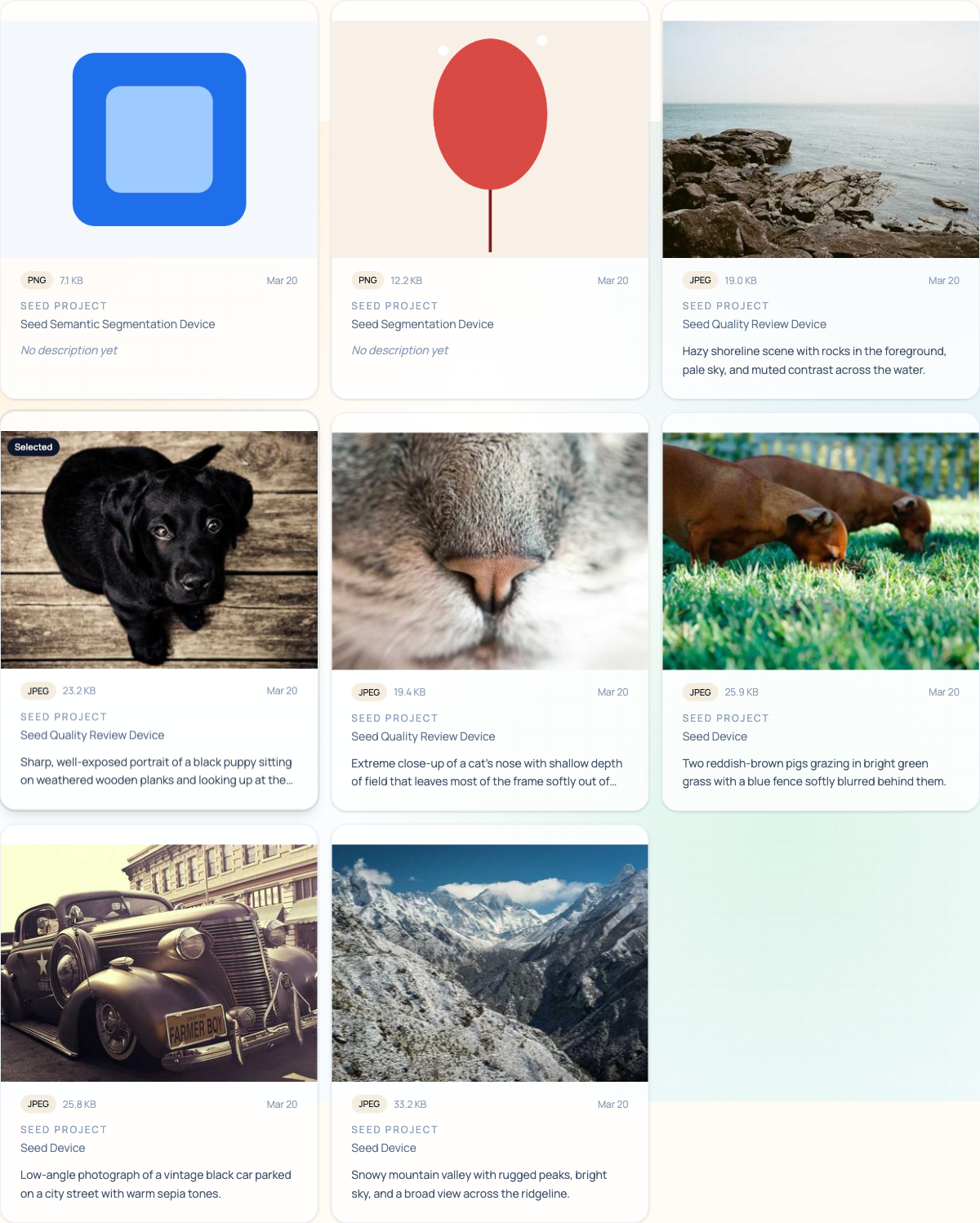
- Search by meaning uses lexical ranking and can blend in semantic description matches when hybrid search is enabled.
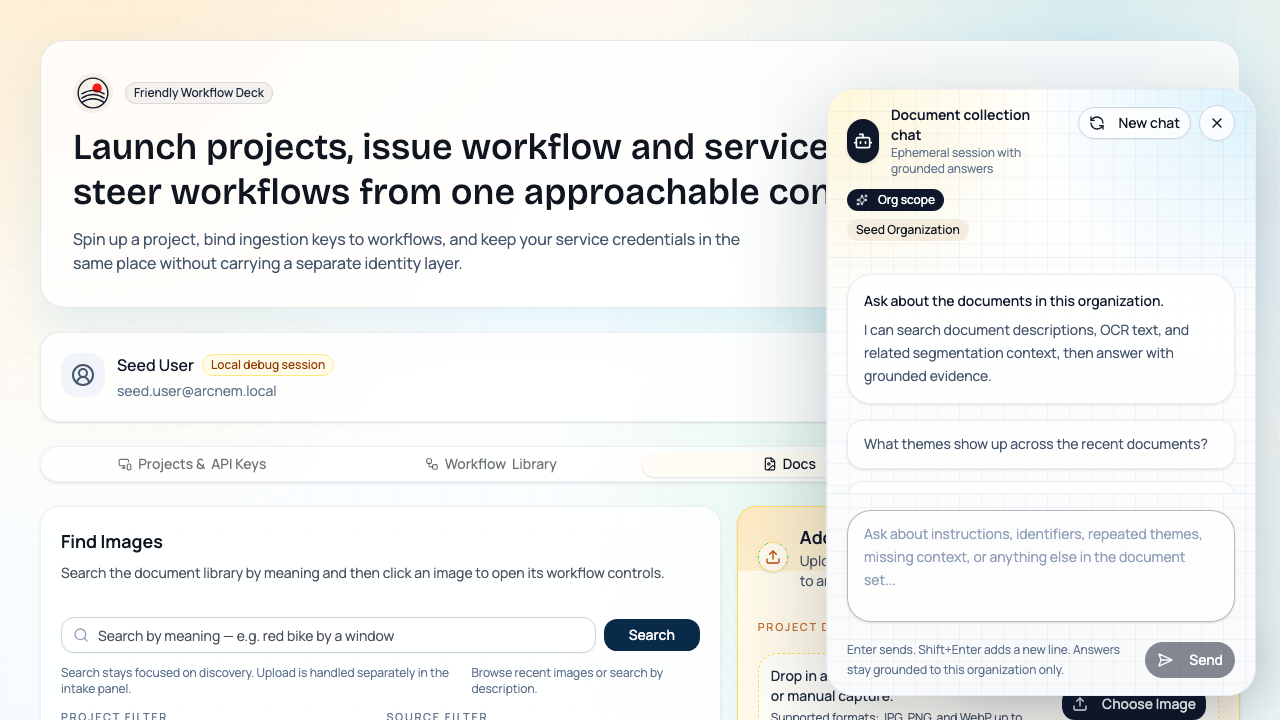
- Ask The Collection opens an org-scoped drawer that answers using document descriptions, OCR text, and related segmentation context.
- Source cards show which document grounded the answer, including project and API-key badges when available.
- New chat clears the current ephemeral session without changing the document library.
- Add From Dashboard uploads a one-off image into a project without binding it to an API key.
- Dashboard uploads are intentionally separate from workflow-key automation: they create a document first, then let you queue whichever saved workflow you want.
- Click any document to choose a different workflow and queue it without changing the source key’s saved assignment.
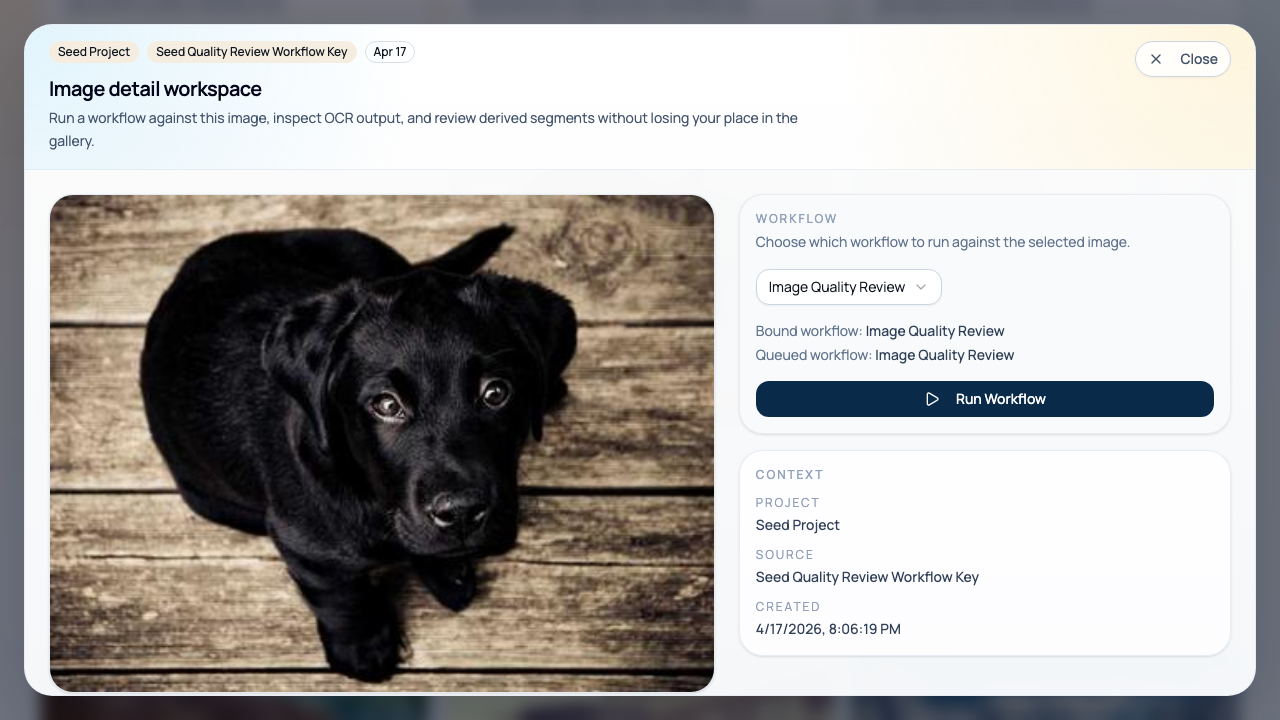
- Related OCR results stay attached to the source document and show the model label, extracted text, average confidence when available, and the raw normalized payload.
- Derived segmented images stay attached to the source document and show the model label plus prompt used to create them.
- Segmentation outputs are stored as real documents, so they can be described, browsed, and reused in later workflows.
- OCR outputs are not separate documents; they are stored as rows in
document_ocr_resultsso operators can review text extraction without creating duplicate media objects.
Runs and realtime updates
Section titled “Runs and realtime updates”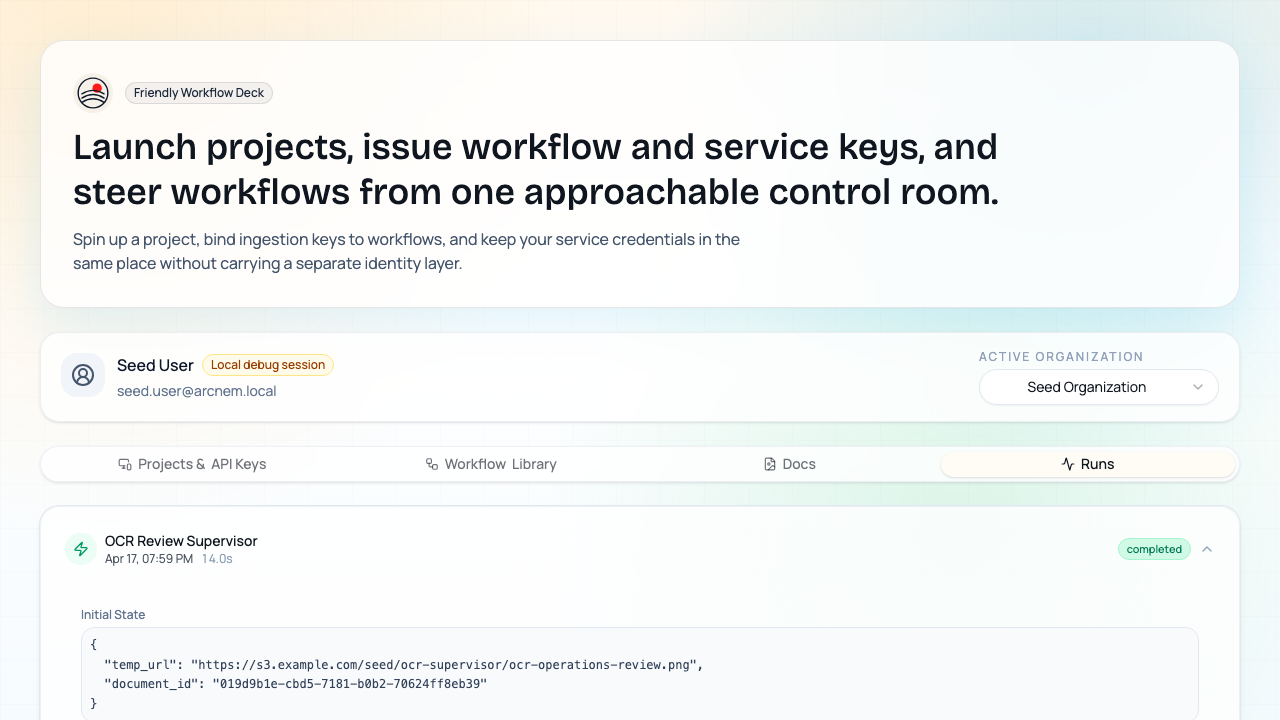
- The dashboard subscribes to
/api/realtime/dashboardvia Server-Sent Events. - Docs refresh when documents are created, OCR results are written, descriptions are written, or segmentation results are persisted.
- Runs refresh when a run is created, when steps change, and when the run finishes.
- Expand a run to inspect initial state, per-step state deltas, final state, timing, and errors.
OCR and segmentation workflows
Section titled “OCR and segmentation workflows”create_document_ocrpersists normalized text, the raw OCR payload, and optional average confidence for a document.- Use a
conditionnode when OCR routing can be handled with a deterministic rule like “contains URGENT”. - Use a
supervisorwhen OCR needs semantic judgment, such as routing to billing vs operations specialists. - Versioned models in the
modelstable can be marked as segmentation models and called from MCP. create_document_segmentationstores both the raw result payload and any derived segmented image.- The seed includes
OCR Keyword Condition Router,OCR Review Supervisor, language segmentation, and semantic segmentation showcase workflows plus matching reusable templates, so you can test both blank-canvas editing and template-based starts immediately.